How to set up an email account in Outlook 365

When starting Outlook 365 for the first time you will see the screen below. If you already have set up one or more email addresses in Outlook before, just click File, and then look for and click the Add Account button to get to this screen.

Enter your new email address (instead of the one below).

Check the box saying "Let me set up my account manually".
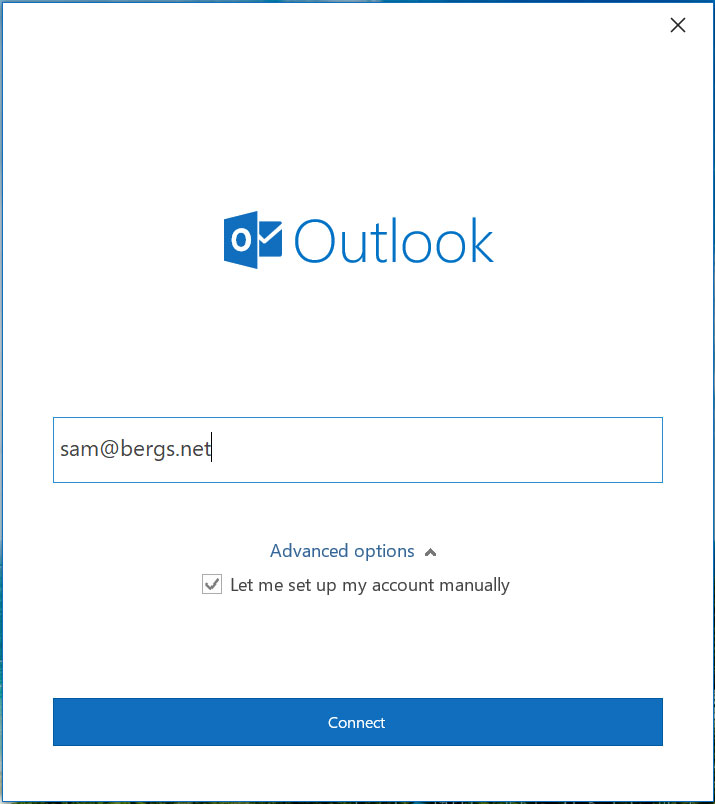
Then click "Connect".

On the next screen below, click IMAP.

On the next screen below, enter the password for your email address.
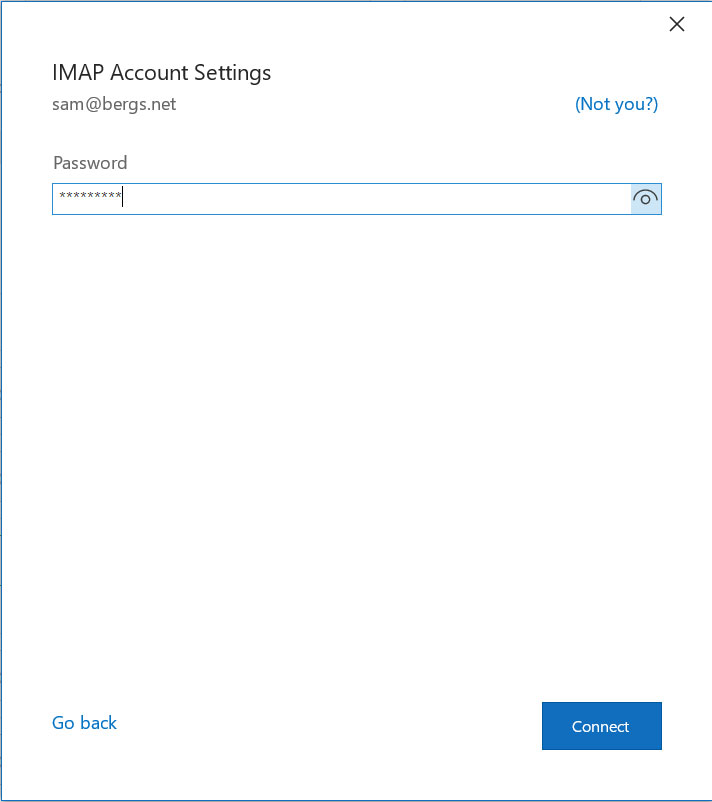
Then click "Connect".

Outlook will add the email address with our correct settings.
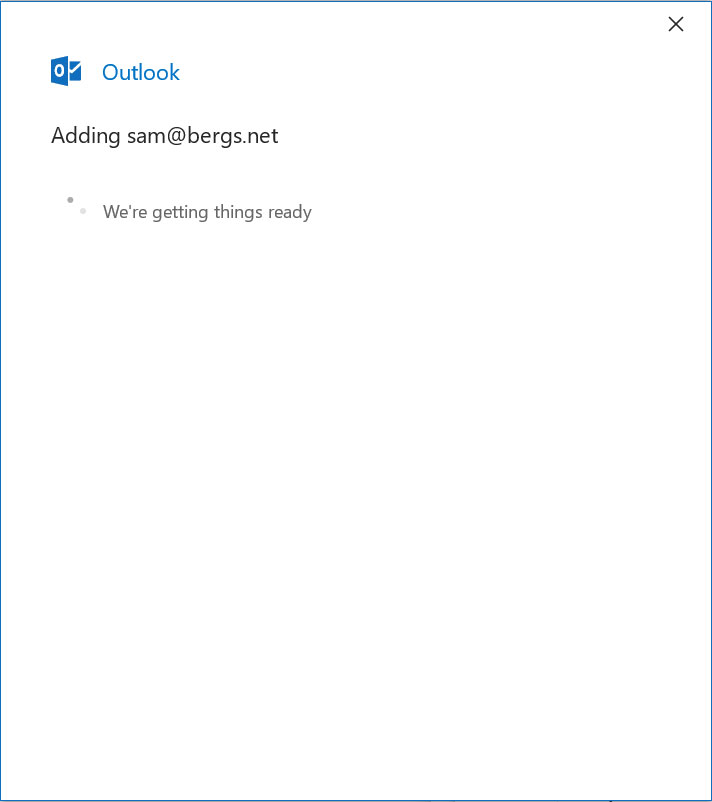
You're all set up now, and can return to Outlook.

Any problems, please open a ticket with our support.

 

  • Microsoft, Outlook, Office 365
  • 0 Users Found This Useful
Was this answer helpful?

Related Articles

Thunderbird - How to fix IMAP settings.

In Thunderbird, you may find you have problems with your settings. If so, you will want to...

Back up your email using Outlook

Back up your email Outlook for Office 365,  Outlook 2019,  Outlook 2016,  Outlook 2013 This...

How to back up your emails.

It's important for you to take backups of your email, because you never know when disaster might...

How to Import/Restore a PST file into Outlook.

If you have been backing up your email through Outlook's PST file system, here is how you import...

Importing email, contacts, and calendar from an Outlook PST file.

Outlook 2016, Office for business, Outlook 2013, Office 365 Small Business, More... This page...