We will be using a test email account email@yourdomain.com. Of course, you will have your own email address so substitute that in the appropriate places.
NOTE: Before proceeding, make sure you have a mailbox created.
After creating a new Outlook account, go to the File tab and click Account Settings; choose Account Settings from the drop-down menu: 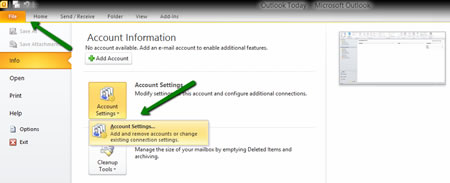
2. Click New in the Email tab: 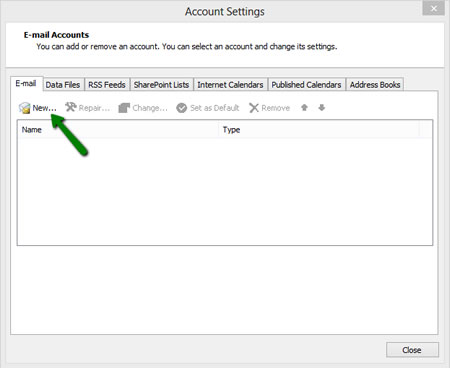
3. Select E-Mail Account and enter your information:
- Your Name – the name you would like the recipients of your emails to see
- E-Mail Address – your full email address
- Password – password for your email account
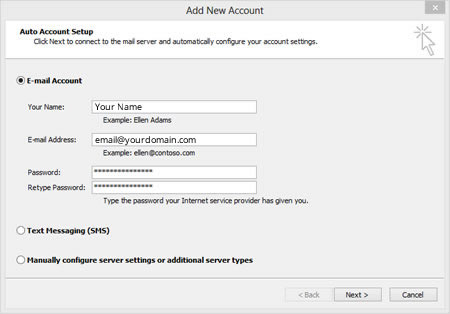
4. Once all the fields are completed, click Next. Disregard any warnings that appear and proceed to the next step.
If you are not able to proceed, you may need to repeat the setup process. You can also try to set up the account manually. To manually set up your email account in Outlook, complete steps 1 and 2 (above), then follow the instructions below in blue:
1. If you have trouble adding account automatically above - choose Manually configure server settings or additional server types option and click Next: 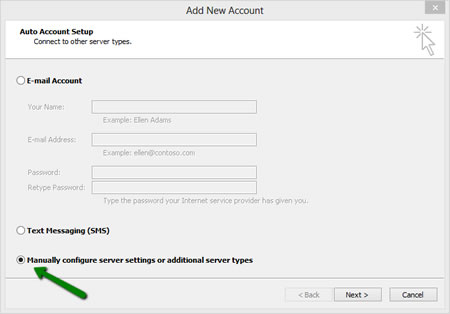
2. Choose Internet E-mail and click Next: 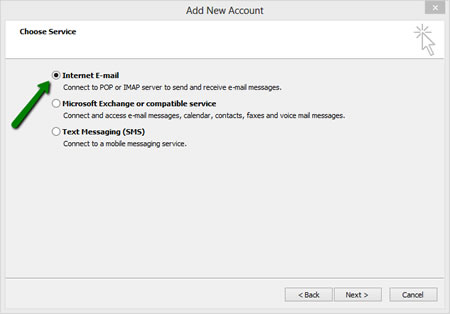
3. Enter/select the following information:
- Your Name: the name of your account in Outlook
- E-mail Address: your full email address
- Account Type: select IMAP or POP3 from the drop-down menu
- Incoming mail server: imap.stackmail.com or pop3.stackmail.com
- Outgoing email server: smtp.stackmail.com
- User Name: your full email address
- Password: the password for this email account
- Require logon using Secure Password Authentication (SPA): should be unchecked
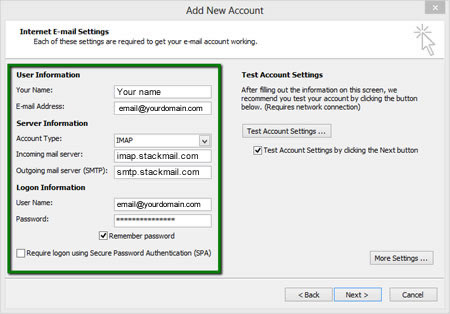
Or, if you are using a POP3 account: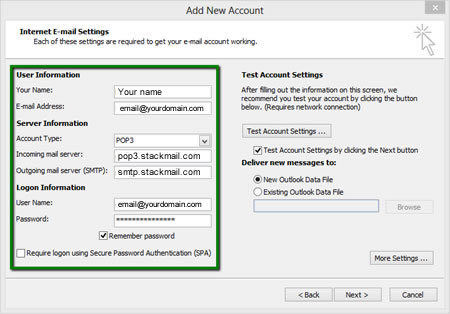
4. Then click More Settings: 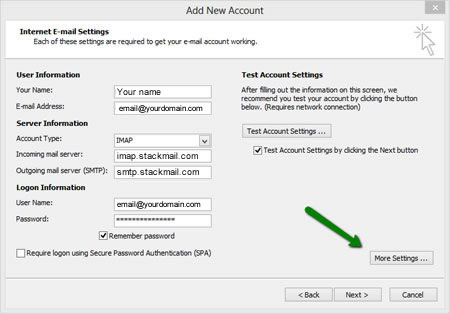
5. Go to the Outgoing Server tab and select My outgoing server (SMTP) requires authentication: 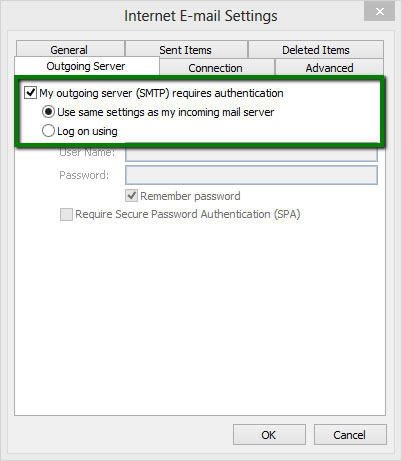
6. Go to the Advanced tab and enter the following Server Port numbers:
Incoming server (if are using IMAP): 993 port for SSL
Incoming server (if you are using POP3): 995 port for SSL
Outgoing server (SMTP): 465 port for SSL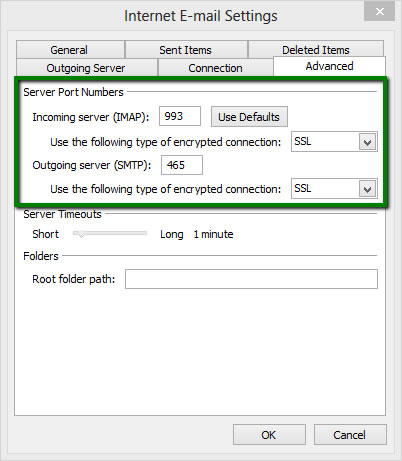
7. Click OK to return to the main window.
8. Click Test Account Settings. If the submitted information is correct, the Status column will display Completed: 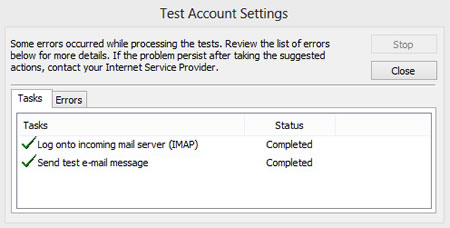
9. If the test was successful, click Close to return to the previous window, then click Next to finish the setup.
That's it!